Prooflet visual guide
1. Create your account
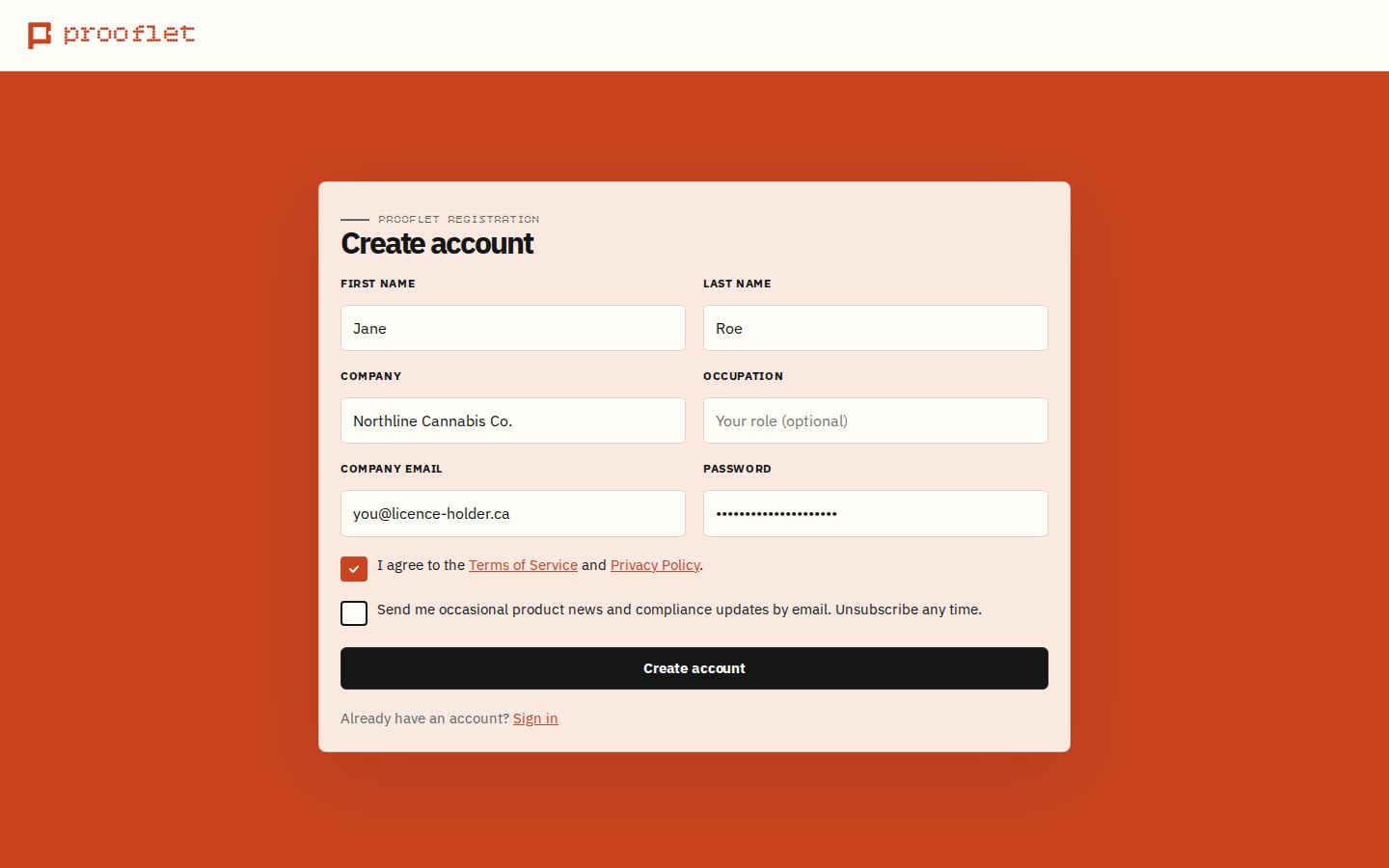
Enter your name, your company, and your email, choose a password, and accept the terms. We'll send you a verification email — click the link inside, then sign in. From here on, everything you approve is recorded under your name.
Good to know
You need to verify your email before you can sign in.
2. Create a SKU
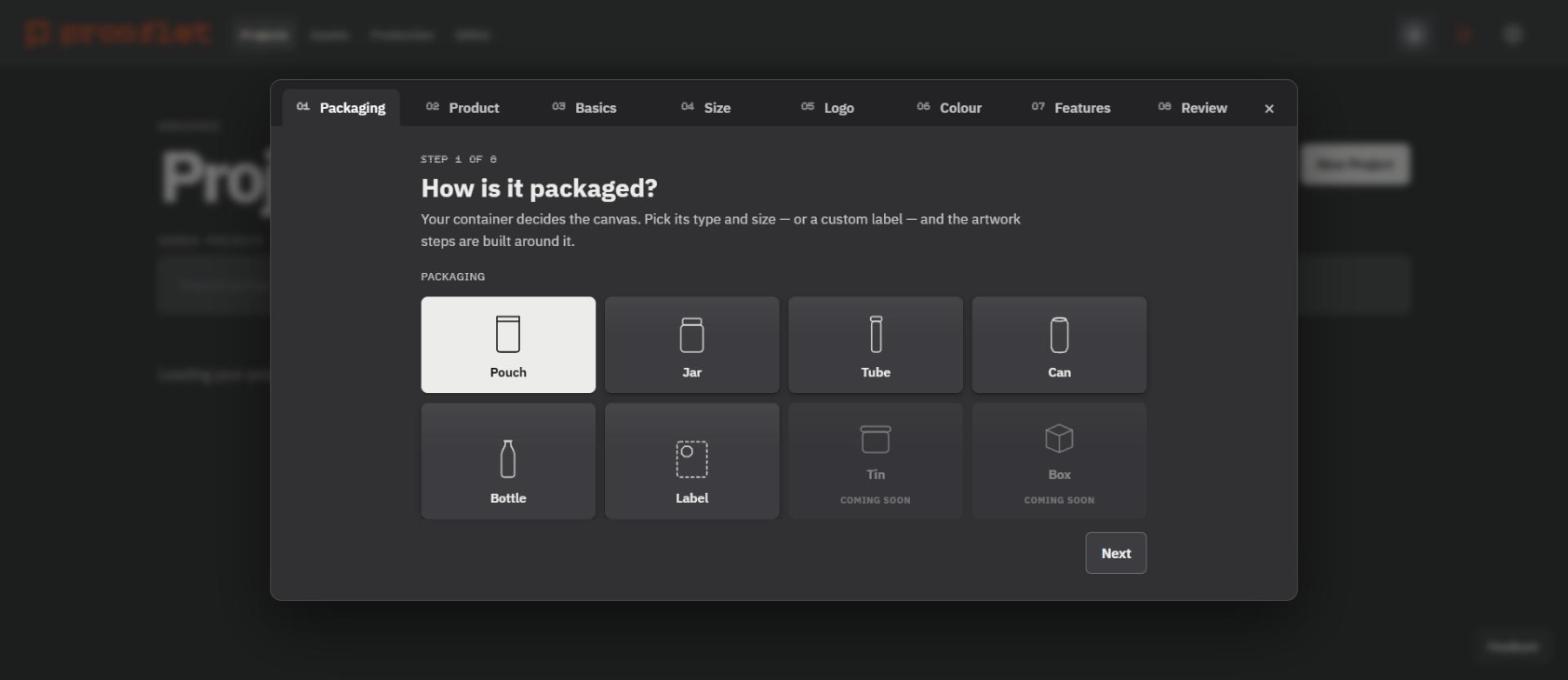
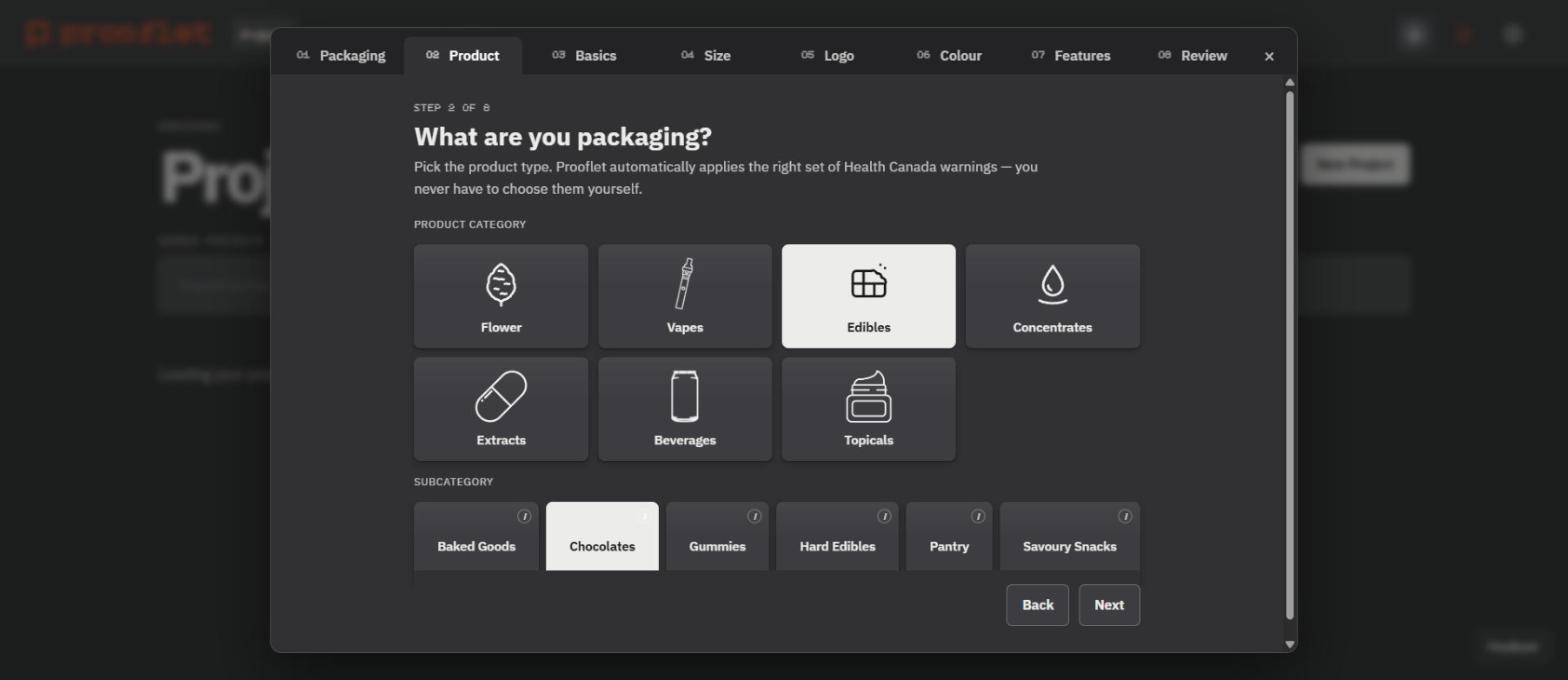
Tell us what you're packaging.
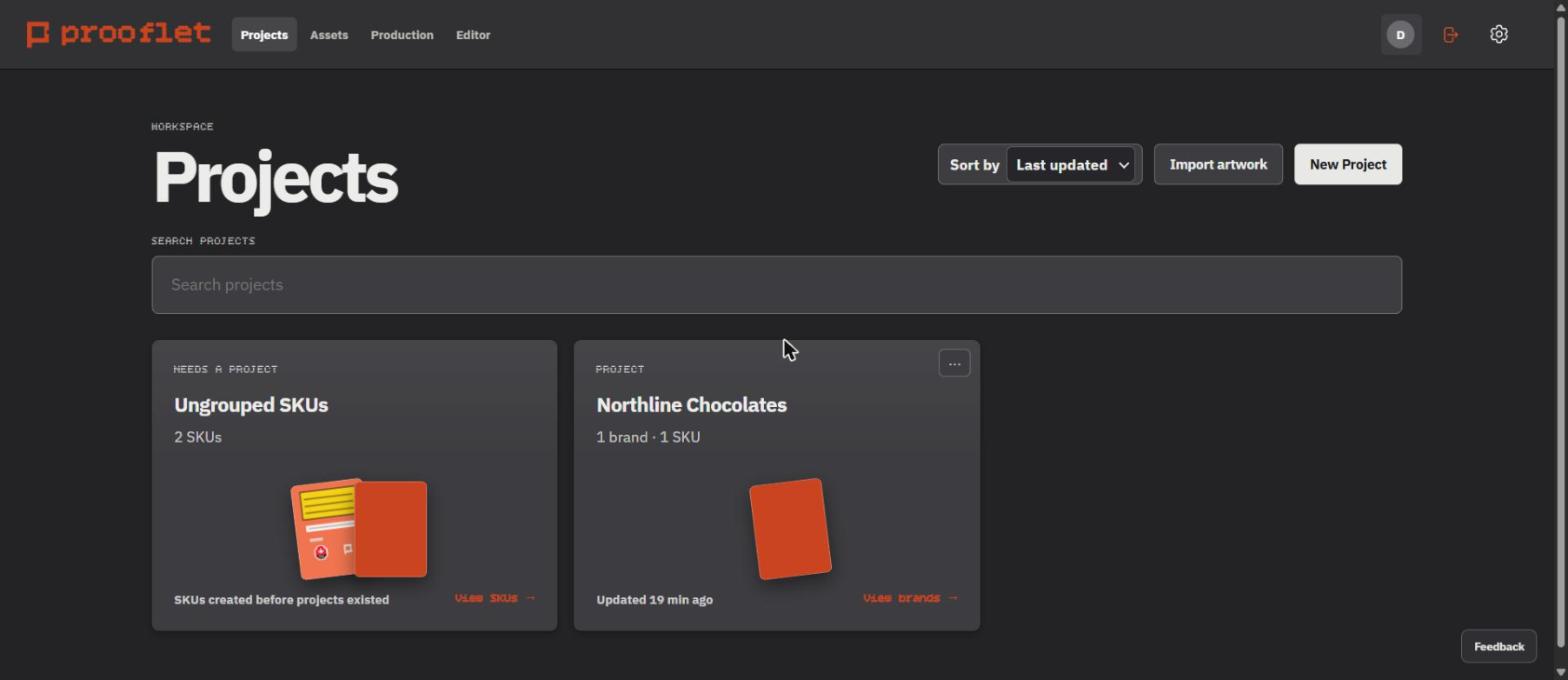
Click New Project. Pick your package first — a pouch, for example — then the product going inside it. These two answers decide which Health Canada rules apply, so Prooflet gets them out of the way up front. Add your product name, brand, and package size, and the editor opens with everything required already in place.
3. Complete the artwork
Your brand goes in around what the rules require.
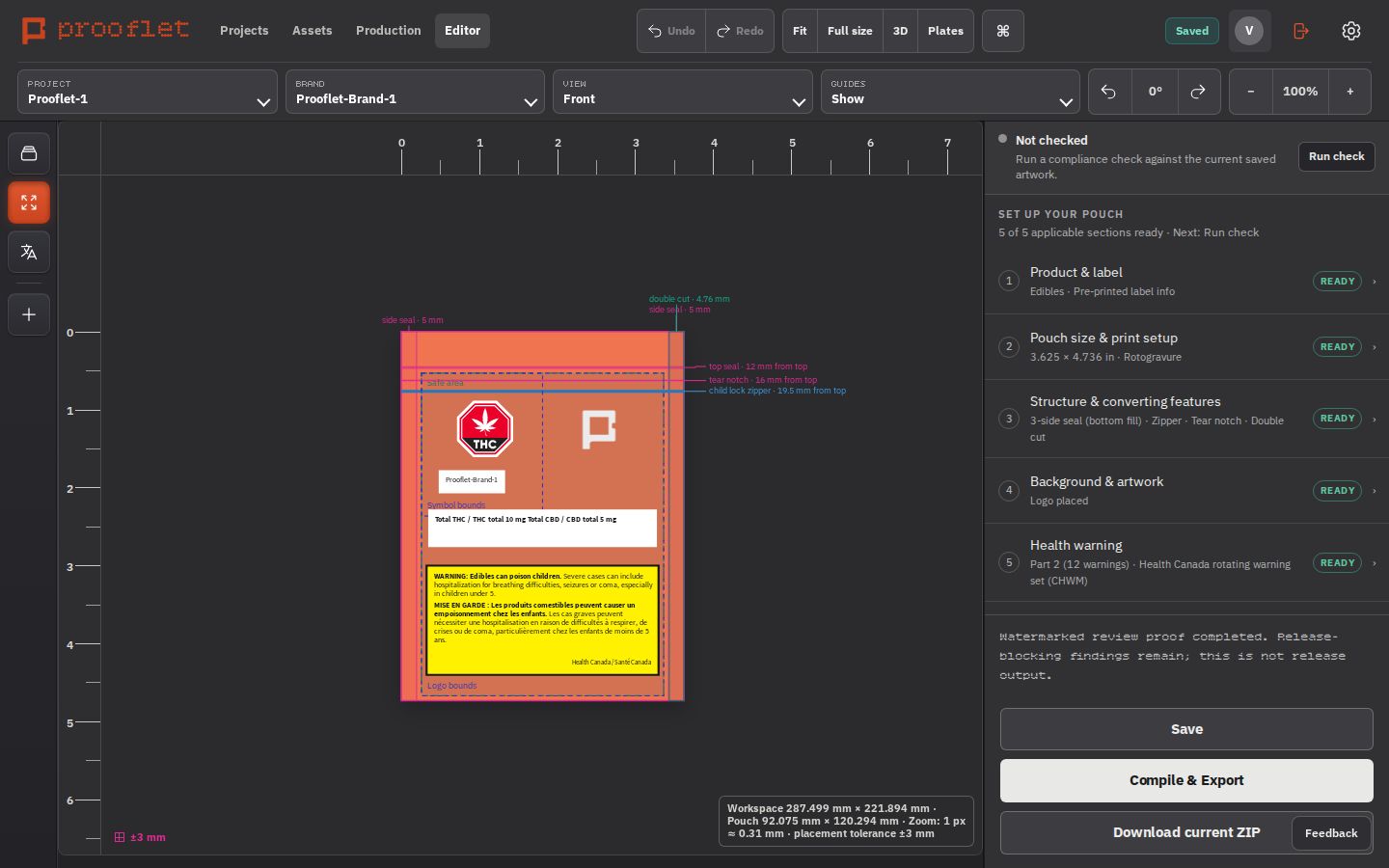
You're looking at your package at its real size. The cannabis symbol, the bilingual health warning, and spaces for the required product information are already placed — your job is filling in your product's details, adding your logo, and choosing your colours. The checklist on the right shows what's left; when every section says READY, you're done here.
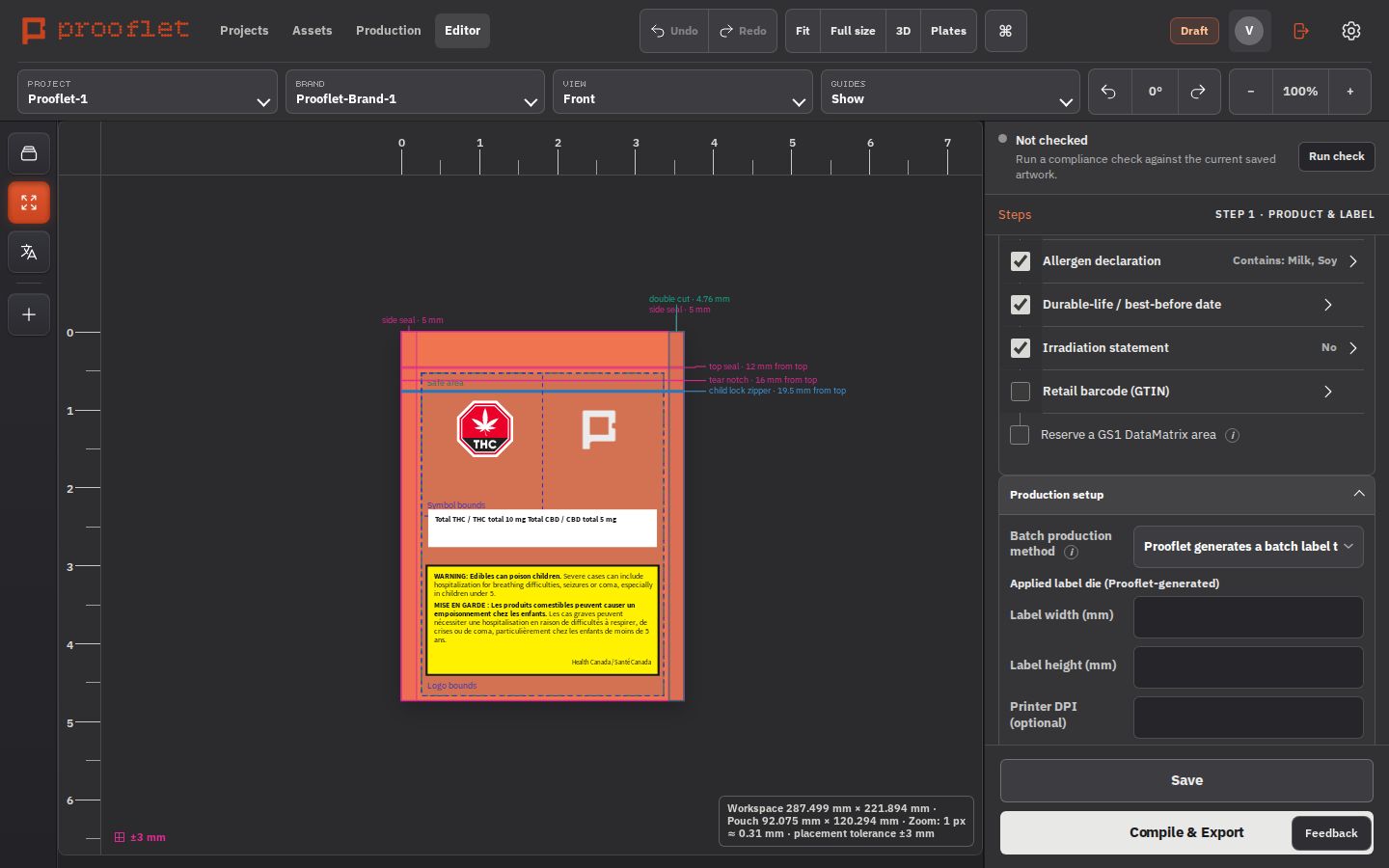
One more choice while you're here: Production setup asks how the lot number and packaging date will get onto each package. If the answer is a small printed label, choose "Prooflet generates a batch label" and enter your label size and printer — you'll use this on packaging day (step 9).
Good to know
Every save is kept as a version, so approvals and production runs always know exactly which artwork they refer to.
4. Preview it in 3D
See the real thing before you print it.
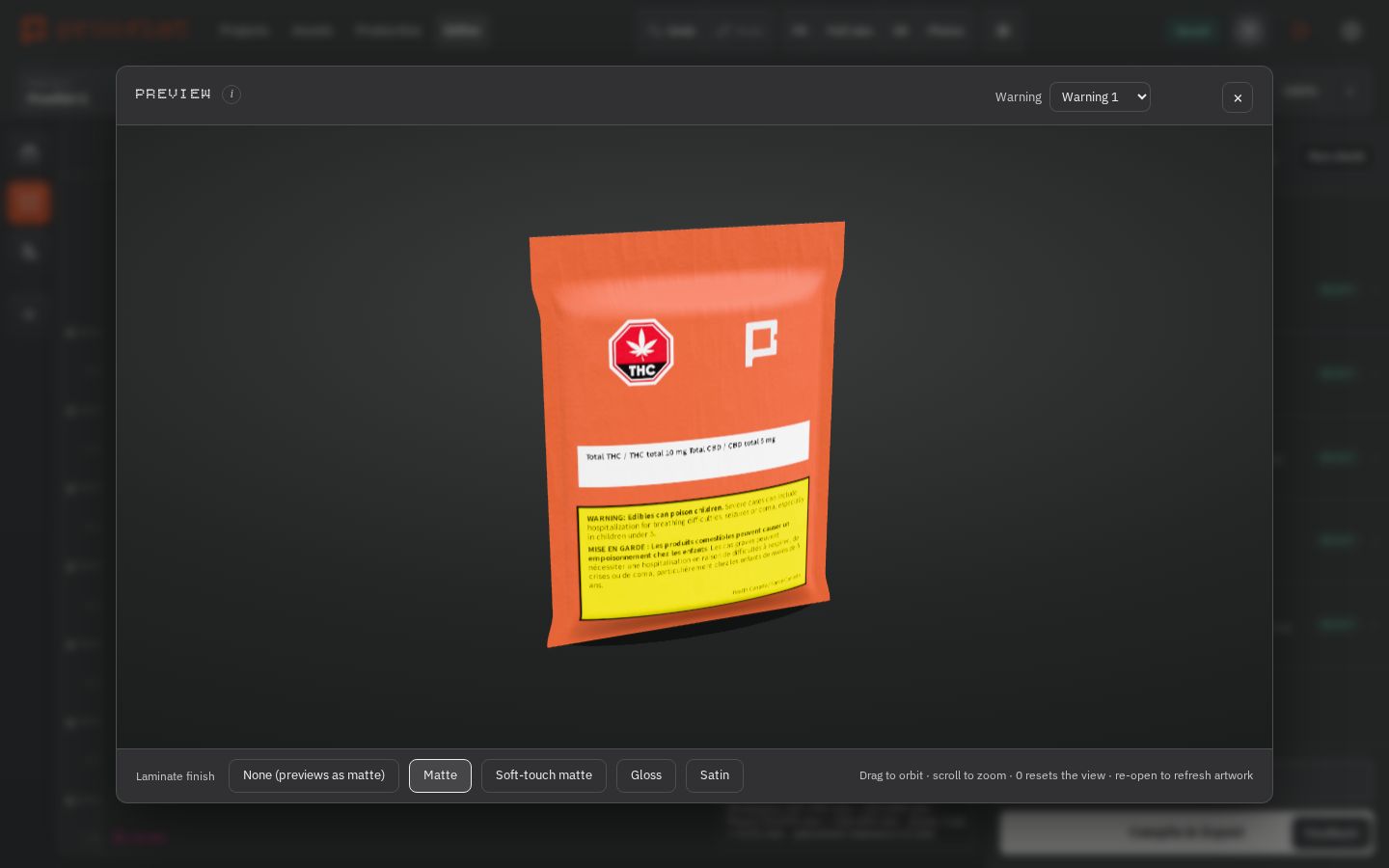
Click 3D in the top bar to see your artwork on the actual package. Spin it around, flip through the health warnings, and try the different finishes — matte, soft-touch, gloss, satin — to see how it will look on a shelf.
5. Run the compliance check
Know exactly where you stand.
Click Run check. Prooflet reviews your artwork against 70+ checks built on Health Canada's packaging rules and tells you what passed, what failed, and what needs a person's judgment. Every result points to the exact rule behind it — no guessing. Our example passes with zero fails and a few items for a person to confirm, like a pre-printed nutrition table. See what gets checked for the full list.
6. Export the package
Files your printer can actually use.
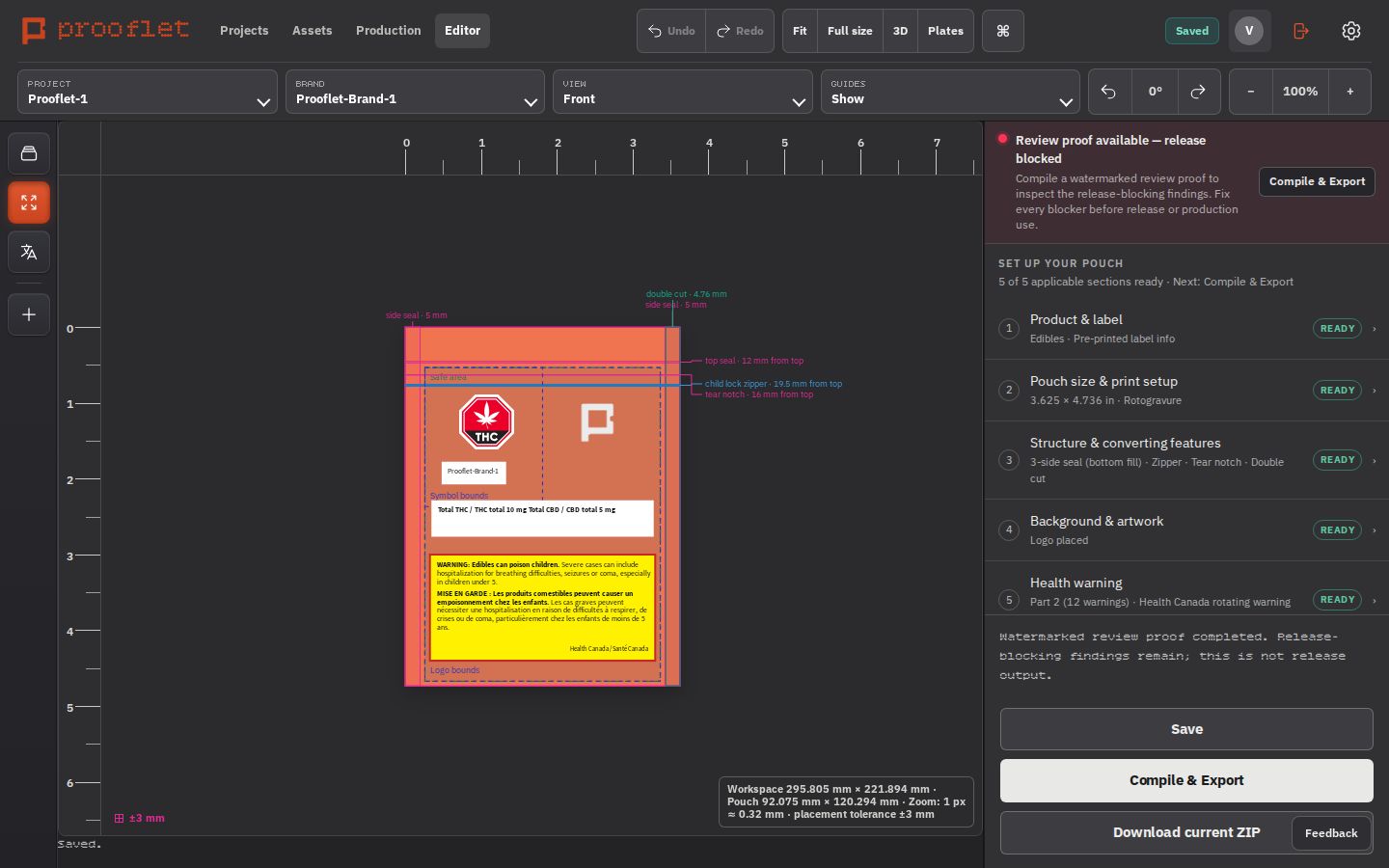
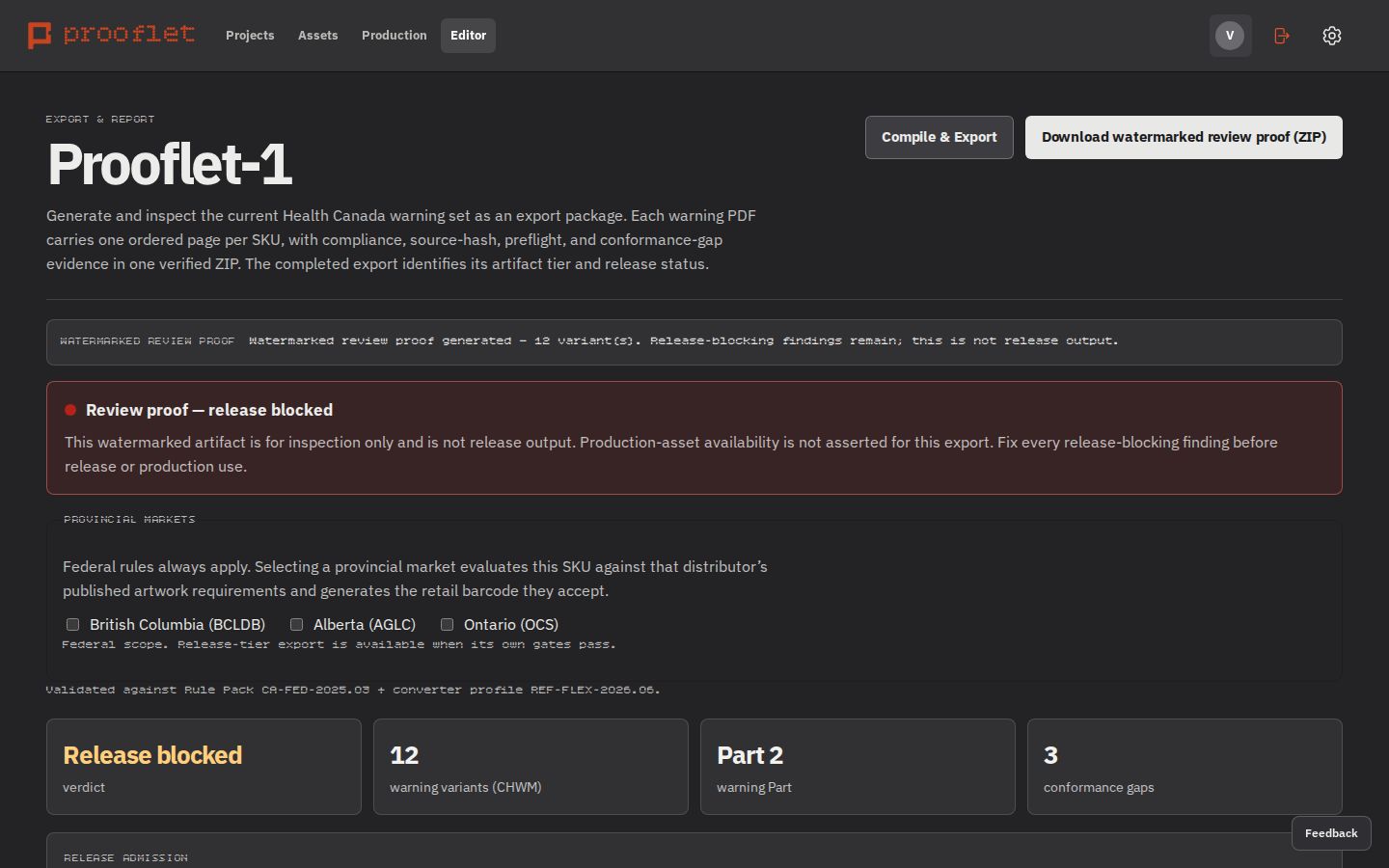
Click Compile & Export. Prooflet builds your complete export package: one layered artwork PDF for every rotating health warning (twelve for an edible), plus the supporting reports — built best-effort for your printer's own prepress review. While anything still needs review, your download is clearly watermarked as a proof — once everything is signed off, the same button gives you the final files.
Good to know
Final files stay locked until every check and sign-off is in place — a watermarked proof is always safe to share for review.
7. Inside the export
Everything your printer asks for, in one ZIP.
The download has a folder for each warning version, a combined PDF for quick flipping, and an index. Here's what each file is for:
| File | What it's for |
|---|---|
artwork.pdf | The layered artwork for this warning version, with the named layers your printer expects; anything not machine-verified is listed in the conformance-gap report. |
artwork.preflight.json | An automatic pre-press check of the file — fonts, colours, dimensions. |
compliance-report.json / .md / .pdf | The full rule check for this artwork — as data, as a readable document, and as a printable PDF. |
conformance-gaps.json | A plain list of anything that couldn't be verified automatically, so nothing is left implied. |
colour-report.json | Which inks and coatings the artwork actually uses. |
asset-sources.json | A record of the images (like your logo) used in the file. |
layers.json + restore-layers.jsx | The layer map, plus a small script that restores the named layers if your designer opens the PDF in Illustrator. |
source-document.json | A snapshot of the exact design these files were made from. |
spec-sheet.json / .md | The manufacturing details for your printer: size, bleed, safe zones, finishes. |
manifest.json | A checksum list so anyone can confirm the files weren't altered. |
combined-artwork.pdf | All warning versions in one PDF for a quick look. |
variants.json + README.txt | The index of what's in the package. |
8. Approve for release
You sign off — Prooflet keeps the record.
Before anything goes to production, someone on your team reviews and approves. Prooflet records exactly what was approved and by whom. If the artwork, the rules, or your target market changes afterwards, the old approval no longer applies and Prooflet asks for a fresh review — an old sign-off can never quietly cover new artwork.
Why approvals reset
An approval is tied to the exact version you looked at. If anything that matters changes, Prooflet asks again — that's what makes the sign-off worth something.
Good to know
A production run can only start once approvals are complete and the rules Prooflet checks against are current.
9. Confirm production runs
Three fields on packaging day.
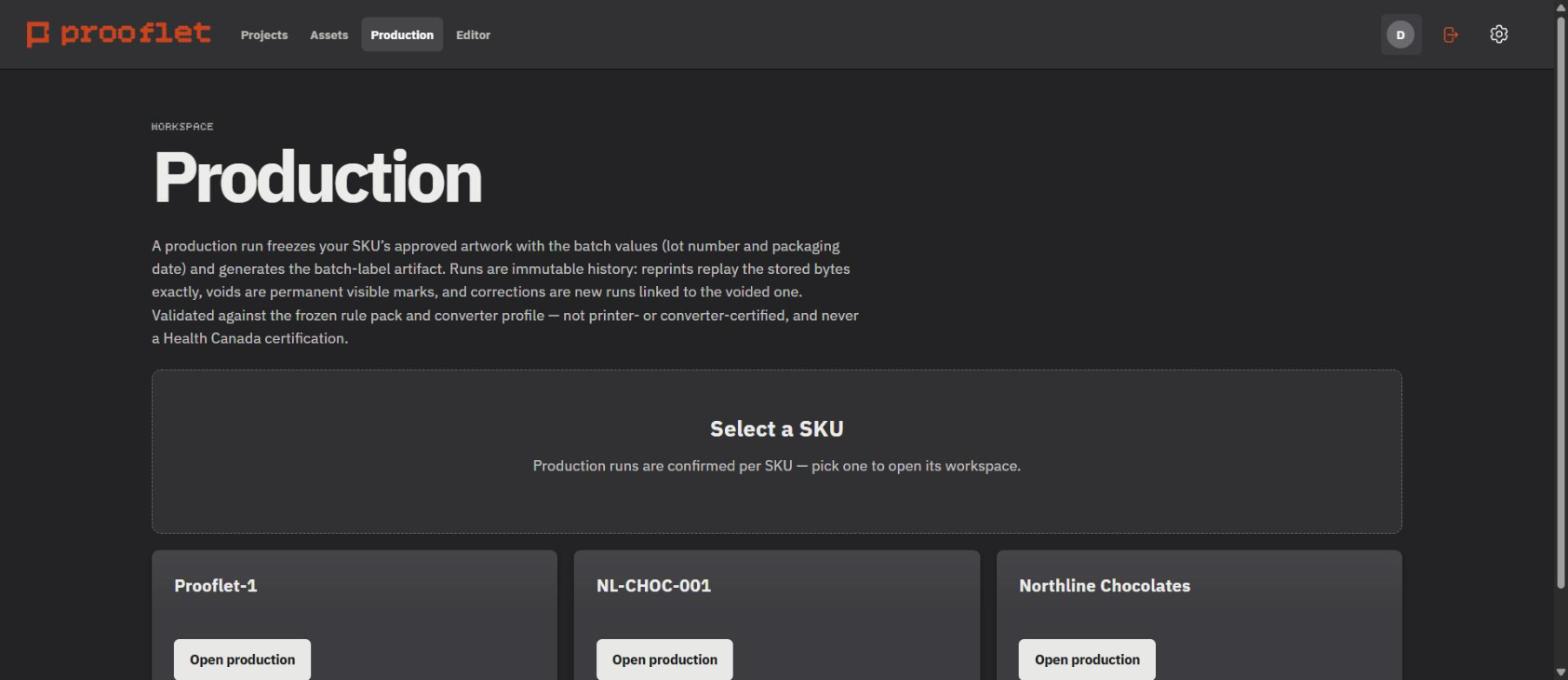
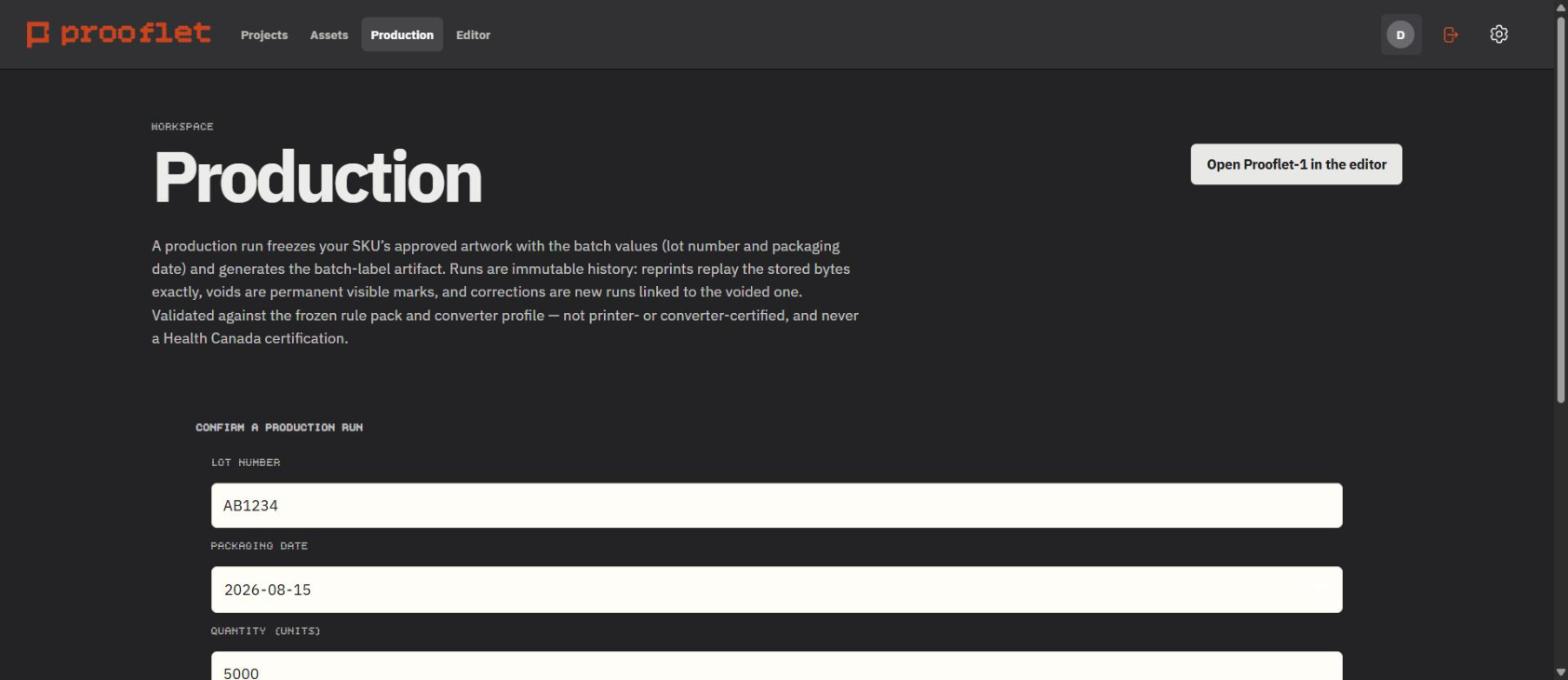
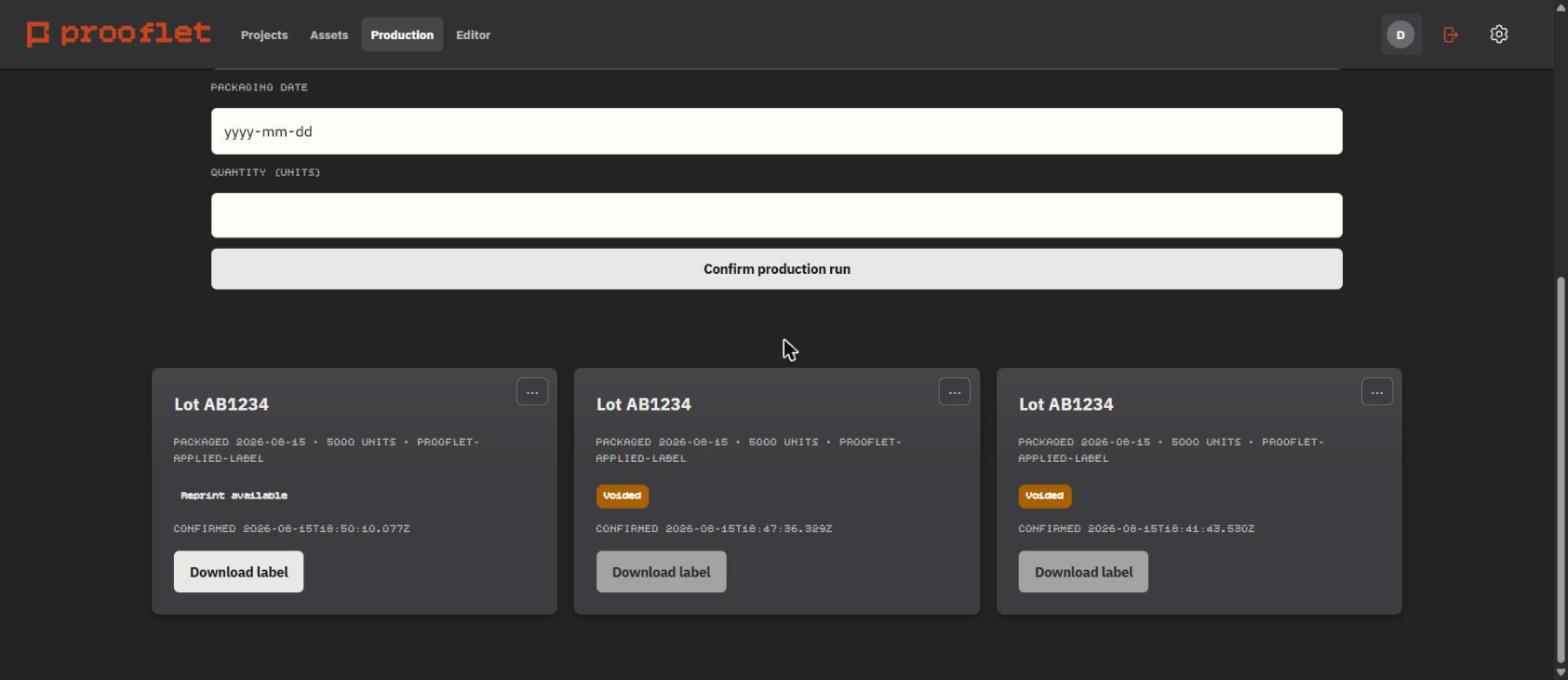
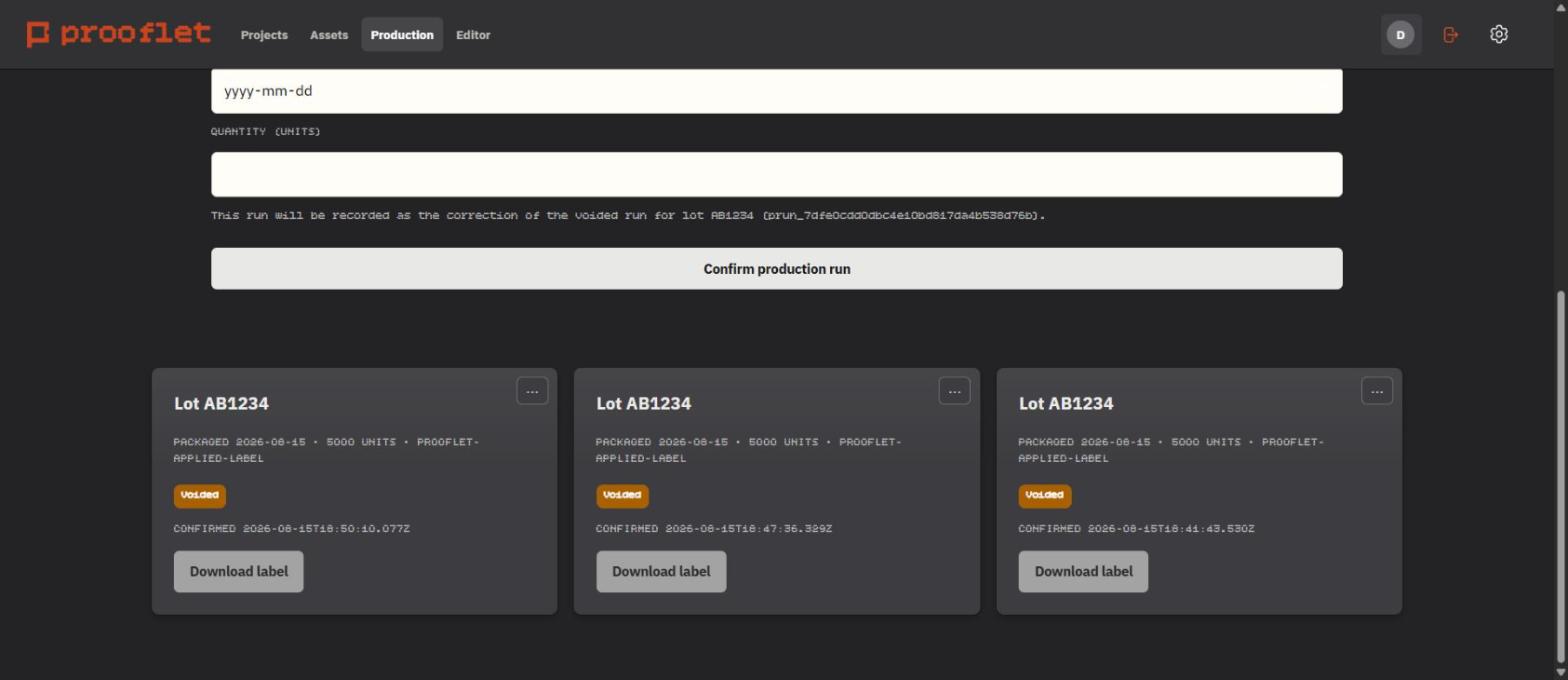
When you're packaging, open Production, pick the product, and enter three things: the lot number, the date, and how many units you're running. Click Confirm production run — Prooflet locks in the approved artwork with those details and instantly generates your batch-label PDF. Print it, apply it, done. The run stays on your account's record for as long as your plan retains it: need more labels? A reprint gives you the identical file. Made a mistake? Void the run — it stays visible, clearly marked — and start a correction that points back to it.
10. The batch label
The label your line prints.
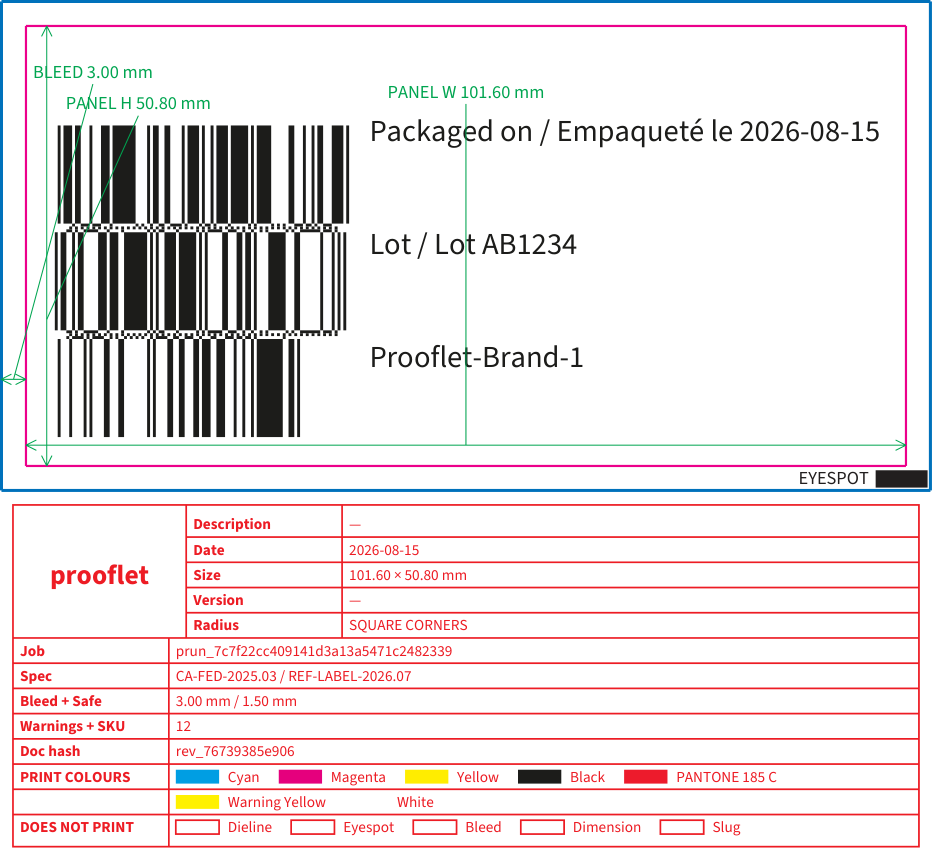
Here's the actual label from the run above, at true size, with the trim and print details your label printer needs. The barcode carries your product code, the packaging date, and the lot number — and Prooflet scans its own barcode back to make sure it reads correctly. One design, printed 5,000 times. Print quality on your line stays yours to verify with your scanner — Prooflet never guesses at that.
Try it with your own product
Free to start.
The screenshots on this page show the real product. Prooflet checks your artwork against published Health Canada rules and your printer's requirements — it's a compliance aid that supports your team's own sign-off, not a certification from Health Canada or from your printer.